





















PrestaDoliSync, le connecteur e-commerce entre Dolibarr & Prestashop
Couramment appelé PrestaSync, PrestaDoliSync est un module de synchronisation entre Prestashop et Dolibarr, conçu pour faciliter la gestion des produits, commandes, clients et stocks entre ces deux plateformes.
Compatible
Prestashop V7.4 à V9.x & Dolibarr V18.0 à V24.x
PHP 7.4 min - 8.3.6 (non testé au-delà)
Navigation rapide
Tester le module
Essayez le module en conditions réelles dans notre environnement de test !
Automatise la saisie de vos commandes Prestashop vers Dolibarr !
Import des commandes
- Importez les commandes provenant de différents sites Prestashop, y compris en multisite.
- L'import d'une commande importe aussi le client et les adresses associées.
- Vous gardez la maîtrise : importer en automatique sur statut Prestashop ou par action manuelle avec les actions en masse.
- Changez le statut d'une commande prestashop depuis Dolibarr
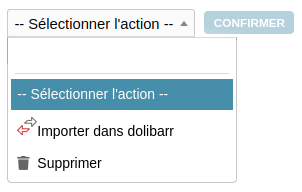
La gestion de large catalogue produits en gardant la maîtrise dans l'ERP
Il s'agit là de la philosophie du module PrestaDoliSync
Import des produits Prestashop vers Dolibarr
- Importer les produits provenant de plusieurs sites Prestashop, même en mode multisite.
- Inclure les images des produits et les prix d'achats fournisseurs pour une gestion complète et centralisée.
- Dans le cas de produits avec déclinaisons, les produits créés sur Dolibarr restent des produits simples sans déclinaisons. Voir si après
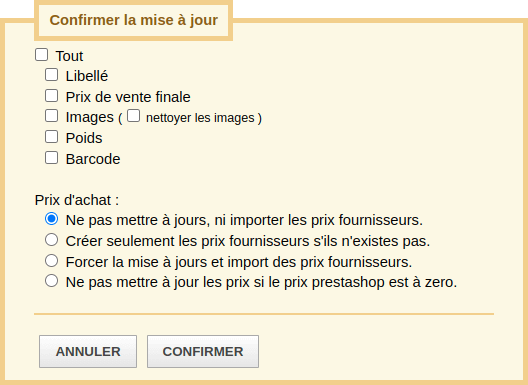
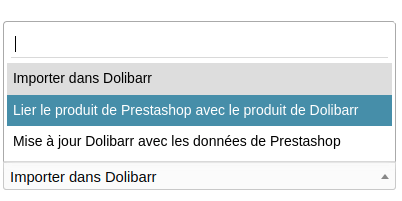
Gestion des déclinaisons
Pour les produits Prestashop avec déclinaisons, l'interface Dolibarr offre une saisie rapide et ergonomique des références, prix et poids des déclinaisons directement dans Dolibarr.
Cela pallie les lacunes ergonomiques de la gestion des déclinaisons dans les fiches produits Prestashop.
Des outils pour vous aidez avec les déclinaisons :
- Une modification instantanée et en direct des références, prix et poids des déclinaisons côté Prestashop.
- Un calcul automatique des impacts de prix et de poids des déclinaisons en fonction des valeurs réelles saisies (prix réels et poids réels).
Tailler pour de grands catalogues produits
Le module PrestaDoliSync se distingue par ses performances pour gérer efficacement de vastes catalogues produits.
Grâce à son système de mise à jour en masse et automatique, il permet de synchroniser rapidement les prix et les stocks de votre boutique Prestashop avec les données issues de Dolibarr.
Chaque mise à jour s’appuie sur un fichier généré automatiquement par Dolibarr, garantissant une intégrité et une fluidité optimale du processus.
Pour donner une idée de ses performances : sur des configurations standards, le module permet de traiter jusqu’à 13 000 références en moins d’une minute côté Prestashop (temps mesuré sur les serveurs THERSANE). Cette rapidité dépend bien entendu des ressources de votre serveur, mais elle montre à quel point PrestaDoliSync est conçu pour répondre aux besoins des entreprises avec de grands catalogues.
Pourquoi les prix et stocks produits ne sont pas mis à jour en direct ?
Le choix de ne pas effectuer de mise à jour en temps réel des prix et stocks depuis Dolibarr repose sur des raisons techniques et stratégiques pour garantir de bonnes performances :
Gestion de la charge serveur :
Le module PrestaDoliSync peut être utilisé pour connecter une instance Dolibarr à plusieurs, voire des dizaines ou centaines, de sites e-commerce. Une mise à jour instantanée à chaque modification de stock ou de prix côté Dolibarr générerait une énorme quantité d’appels API. Cela risquerait de surcharger non seulement le serveur Dolibarr, mais également les serveurs Prestashop des boutiques connectées, particulièrement lors de mises à jour massives.
Prévention des erreurs temporaires :
En temporisant les mises à jour à des plages horaires définies, les éventuelles erreurs de saisie côté Dolibarr (par exemple une mauvaise entrée de stock ou de prix) n’ont pas d’impact immédiat sur tous les sites e-commerce. Cela offre le temps de corriger ces erreurs avant leur propagation, garantissant ainsi la cohérence des données synchronisées.
Répartition intelligente de la charge :
La synchronisation différée permet de répartir la charge des mises à jour entre les différents sites e-commerce connectés. Ainsi, chaque serveur Prestashop peut traiter les mises à jour à son rythme, tout en évitant une sollicitation excessive du serveur Dolibarr, particulièrement critique pour les entreprises avec des catalogues volumineux.
En résumé, ce système de synchronisation planifiée garantit à la fois des performances optimales et une meilleure fiabilité des données, tout en évitant les désagréments liés aux erreurs ou aux pics de charge.
Création et mise à jour des produits sur Prestashop depuis Dolibarr
La création de produits sur Prestashop à partir de Dolibarr n'est actuellement pas prise en charge. Seules les mises à jour de stocks, de prix et de poids sont possibles dans ce sens.
Ce choix repose sur une réalité fonctionnelle : la gestion des produits et de leurs déclinaisons diffère considérablement entre Dolibarr, Prestashop et même entre plusieurs boutiques Prestashop connectées. (Rien n’empêche, par exemple, une boutique Prestashop de gérer ses produits par déclinaisons alors qu'une autre boutique gère les mêmes produits sans déclinaison).
Ces différences rendent complexe l'harmonisation des attributs et des caractéristiques d'un système ou site à l'autre. L'objectif n'étant pas de saturer Dolibarr avec des données de synchronisation inutiles, cette limitation s'impose naturellement.
Tenter d’unifier ces logiques obligerait à faire des compromis qui pourraient nuire à l’intégrité des données ou aux spécificités de chaque plateforme. Nous avons donc opté pour une approche plus cohérente : laisser chaque logiciel gérer les produits à sa manière tout en nous concentrant sur l’essentiel, à savoir la synchronisation fiable et rapide des informations clés comme les stocks, les prix et les poids.
Ce choix s'appuie également sur des retours d'expérience issus de solutions testées avant la création de PrestaDoliSync, qui ont provoqués des synchronisations automatiques indésirables, effaçant sans discernement des heures de travail acharné. Un logiciel doit être un allié qui facilite notre travail et non un obstacle qui le complique.
Par expérience, si vous comptez créer en masse des produits côté Prestashop, il est préférable d'opter pour des imports par fichier CSV qui, en regardant de près, vous permettent de maîtriser les données associées, par exemple : catégories, tags, caractéristiques ou attributs...
Fonctionnalités : en supplémentaires
Voici quelques fonctionnalité actuellement en tests et qu vous pouvez essayer.
Traduction fiches produits avec Deepl
Traduction des fiches produits Prestashop avec DeepL depuis Dolibarr
Grâce à cet outil, vous pouvez traduire facilement vos fiches produits Prestashop directement depuis Dolibarr en utilisant DeepL.
Il vous suffit d’obtenir une clé API DeepL (version gratuite disponible). L’outil prend en charge la traduction depuis la langue par défaut vers plusieurs langues, vous permettant d’automatiser et d’optimiser la gestion multilingue de votre boutique en ligne.
Vous pouvez dès maintenant l’essayer et nous faire part de vos retours !
Générer / compléter vos fiches produits avec l'IA
Testez dès maintenant notre nouvelle fonctionnalité IA qui vous aide à générer, compléter et optimiser le SEO de vos fiches produits Prestashop depuis Dolibarr.
Grâce à l’intelligence artificielle, améliorez automatiquement vos titres, descriptions et mots-clés pour un meilleur référencement.
Cette fonctionnalité est en phase de test, mais vous pouvez déjà l’essayer et nous partager vos retours !
Témoignages de nos clients et utilisateurs
Nos modules Dolibarr conçus pour optimiser notre quotidien, prêts à transformer le vôtre : découvrez les témoignages de nos collaborateurs et clients
Après avoir pu tester diverses solutions du marché, PrestaSync répondais en tous points à nos besoins, le plus, un support réalisé par un véritable utilisateur de la solution ce qui permet "de se comprendre" ce qui change des "simples éditeurs" de modules qui développent un module pour un besoin client unique sans tester différents cas de figure.
Pour nous, avoir des données centralisées (produits, stocks, commandes, base client,...) était un impératif, grâce à cette intégration, nous pouvons suivre avec précision nos commandes, besoins en stock et surtout proposer des produits et services adaptés à nos clients.

L'import des produits est très fluide, l'import automatique des commandes est un vrai gain de temps.
De plus, nous avons acheté ce module à son lancement et pour l'occasion, THERSANE nous a bien accompagné dans la mise en place de ce module.
Nous recommandons ce module à toutes les personnes en quête d'un connecteur simple à intégrer, fonctionnel et performant.
Merci !

Utiliser notre propre solution nous permet aussi d’améliorer constamment PrestaDoliSync en fonction des retours réels du terrain. Chaque nouvelle version est le fruit de notre expérience et de celle de nos clients.
Nous sommes fiers de proposer un outil qui simplifie la gestion des e-commerçants tout en optimisant notre propre organisation.
Si nous l’avons conçu pour nous, c’est parce qu’il nous était indispensable et nous savons qu’il le sera aussi pour vous !

Télécharger le module : PrestaDoliSync
Module disponible sur le Dolistore, la plaforme de vente officiel de Dolibarr

Télécharger le module sur Prestashop-AddOns
Le module est disponible sur la page produit prestashop AddOns.
En achetant le module sur Prestashop-Add-on, vous recevrez un fichier ZIP contenant les modules PrestaShop et Dolibarr. Le module Dolibarr est disponible en téléchargement depuis la page de configuration du module dans PrestaShop.

Télécharger le module sur Dolistore
Le module est disponible sur la page produit du Dolistore.
En achetant le module sur Dolistore, vous recevrez un fichier ZIP contenant le module Dolibarr. Le module PrestaShop est disponible en téléchargement dans la configuration du module.
Restez informé des Mises à jours
Ne manquez aucune amélioration ou nouveauté pour vos modules.
Inscrivez-vous à notre newsletter et recevez directement dans votre boîte mail les dernières actualités, information de mises à jour et conseils pour optimiser vos outils.
Synchronisations PrestaShop ↔ Dolibar
Comparatif des synchronisations entre PrestaShop et Dolibarr
Le module PrestaDoliSync gère automatiquement les synchronisations entre vos deux systèmes. Le tableau ci-dessous montre les directions et types d’actions prises en charge.
| Élément synchronisé | PrestaShop → Dolibarr Création | PrestaShop → Dolibarr Mise à jour | Dolibarr → PrestaShop Création | Dolibarr → PrestaShop Mise à jour |
|---|---|---|---|---|
| Commandes | ✅ | ⚙️(statuts) | ❌ | ⚙️(historique statuts) |
| Tiers (clients) | ✅ | ✅ | ❌ | ❌ |
| Produits | ✅ | ✅ | ❌ | ⚙️ (stocks, prix, EAN13, nom, description, poids, ref...) |
| Fournisseurs | ✅ | ❌ | ❌ | ❌ |
| Prix produits fournisseurs | ✅ | ❌ | ❌ | ❌ |
| Paniers | ✅ | ❌ | ||
| Factures | ❌ | ❌ | ✅ | ✅ |
| Suivi de colis | ❌ | ✅ | ❌ | ❌ |
| Historique des statuts de commande | ❌ | ❌ | ✅ | ✅ |
✅ = Synchronisation disponible ❌ = Non synchronisé ⚙️= Synchronisation partielle
Installation du module : Dolibarr
Note : Si vous avez acheté le module PrestaDoliSync sur PrestaShop Add-on, vous devez d'abord installer le module sur PrestaShop afin d'obtenir le module Dolibarr (disponible au téléchargement dans les options).
Installation via un fichier ZIP et l'interface graphique
- Si le module est fourni sous forme de fichier ZIP prêt à être déployé (nommé module_xxx-version.zip, par exemple lorsqu'il est téléchargé depuis une marketplace comme Dolistore), procédez comme suit :
- Allez dans le menu Accueil > Configuration > Modules/Applications > Déployer un module externe.
- Téléchargez le fichier ZIP du module depuis votre ordinateur.
- Note importante : Si un message d'erreur vous indique qu'il n'y a pas de répertoire "custom", vérifiez que votre installation de Dolibarr est correctement configurée et que le répertoire est accessible.
- Vous devriez maintenant voir le module que vous venez de télécharger dans la liste. Cliquez sur "Activer" pour commencer à utiliser le module.
- Si le module le nécessite, configurez le, et activer les droits à vos groupes d'utilisateurs et/ou utilisateurs.
Module Install : Prestashop
Note : Si vous avez acheté le module PrestaDoliSync sur Dolistore, vous devez d'abord installer le module sur Dolibarr afin d'obtenir le module PrestaShop (disponible au téléchargement dans les options).
Installation par fichier ZIP et interface graphique
Connectez-vous à votre panneau d'administration PrestaShop
Ouvrez votre navigateur et accédez à la page d'administration de votre PrestaShop.Accédez à la section "Modules"
Dans le menu de gauche, allez dans Modules et sélectionnez Gestionnaire de modules.Téléversez le module
En haut à droite de la page du Gestionnaire de modules, cliquez sur le bouton Téléverser un module (généralement à côté de la barre de recherche).
Une fenêtre pop-up apparaîtra. Cliquez sur le bouton Sélectionner un fichier et localisez le fichierprestasync.zipsur votre ordinateur.
Une fois sélectionné, cliquez sur Suivant pour démarrer le processus de téléversement.Installez le module
Après le téléversement du fichier, PrestaShop affichera automatiquement les informations du module.
Cliquez sur Installer pour procéder à l'installation du module.Configurez le module
Après l'installation, vous devrez peut-être configurer le module. Vous pouvez généralement le faire en cliquant sur le bouton Configurer à côté du module dans le Gestionnaire de modules.
Et voilà ! Le module devrait maintenant être installé et actif sur votre boutique PrestaShop. Assurez-vous de suivre toutes les instructions de configuration supplémentaires fournies avec le module.
Prestashop Configuration du module : PrestaDoliSync
Navigation rapide
- Configuration des WebServices
- Configuration des mises à jour de masse des prix et des stocks
- Configuration de l'importation automatique des commandes dans Dolibarr
- Page de configurations
- Créez votre première boutique Prestashop dans Dolibarr
- Comment importer des commandes prestashop dans Dolibarr ?
- Configuration des factures avec PrestaDoliSync
- Incompatibilités connues
Configuration des WebServices
L'activation des WebServices PrestaShop est nécessaire pour que Dolibarr puisse communiquer avec votre boutique en ligne. Elle assure la synchronisation des données, telles que les commandes et les clients, en évitant les mises à jour manuelles. Avec des clés API sécurisées, il garantit un échange fiable et efficace, optimisant la gestion de l'entreprise.
1. Activation du Webservice PrestaShop
Connectez-vous au panneau d'administration de PrestaShop.
Accédez à Paramètres avancés > Webservice.
Activez l'option Activer le Webservice.
Cliquez sur Enregistrer.
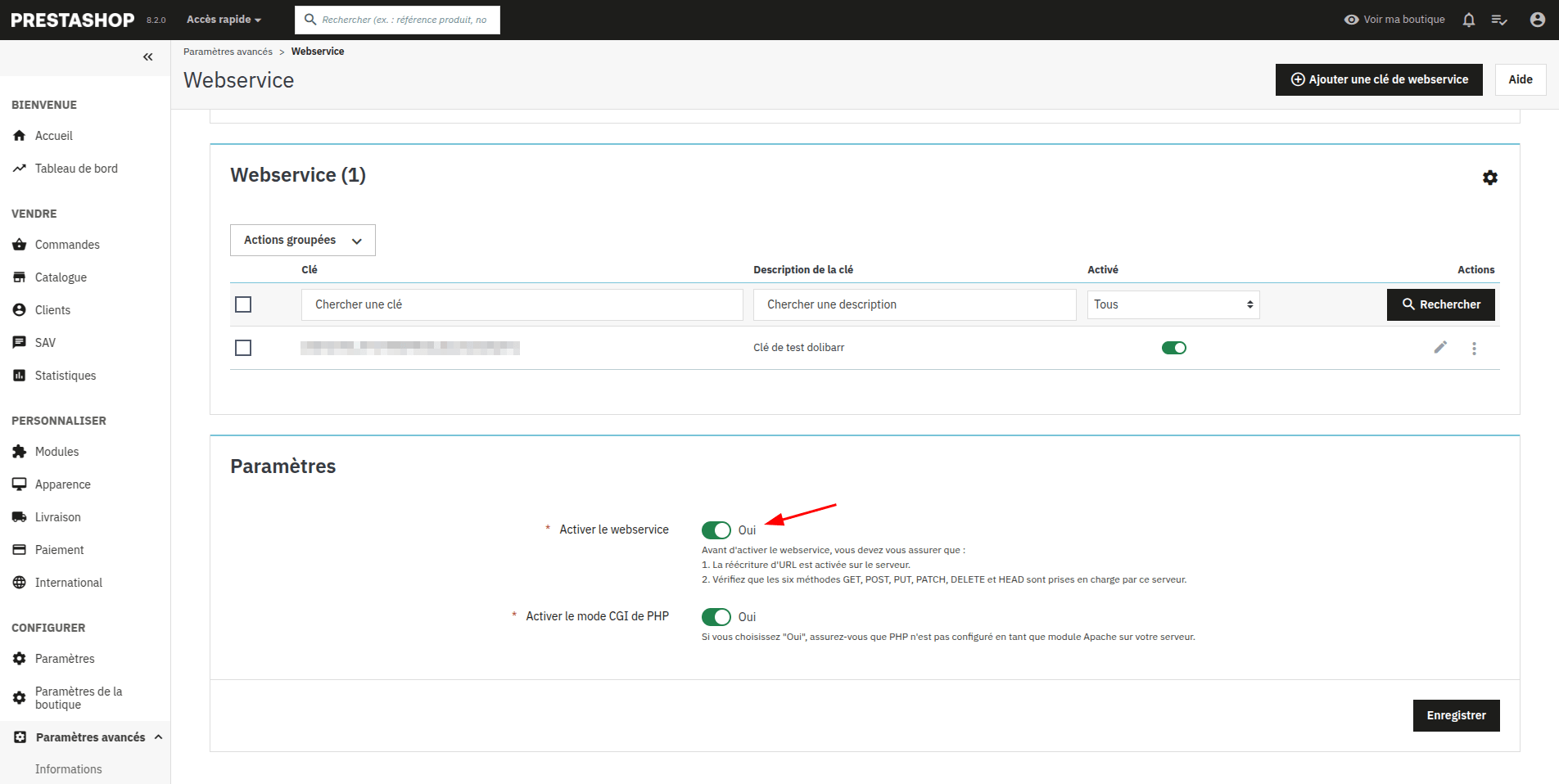
Note importante sur l'activation des webServices de Prestashop
Attention l'activation des webServices ne fonctionnent pas toujours lors de l'activation de ces derniers. Il est possible qu'il soit nécessaire d'ajouter la lignes suivantes à votre fichier .htaccess de votre site Prestashop juste apres RewriteEngine on.
RewriteCond %{HTTP:Authorization} ^(.*)
RewriteRule . - [E=HTTP_AUTHORIZATION:%1]
Ou Le serveur Web peut nécessiter l'activation de la directive CGIPassAuth pour permettre à PrestaShop de recevoir l'en-tête HTTP_AUTHORIZATION.
CGIPassAuth On
ou
SetEnvIf Authorization "(.*)" HTTP_AUTHORIZATION=$1
Attention au mode maintenance !
Si vous n'arrivez pas à vous connecter depuis Dolibarr il est possible que le mode maintenance du site vous en empêche, pensez à ajouter toutes les ip du serveur de votre Dolbarr.
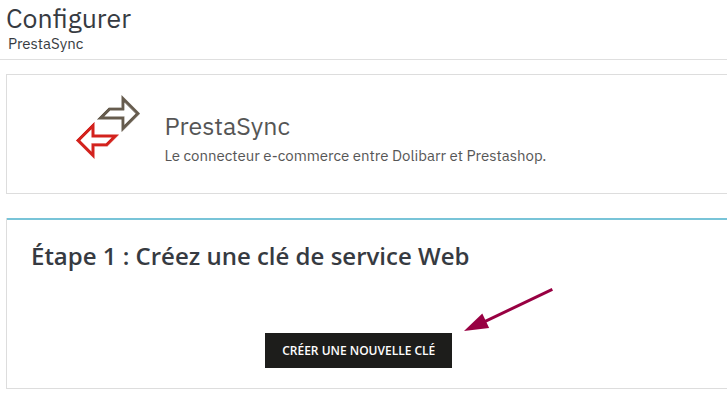
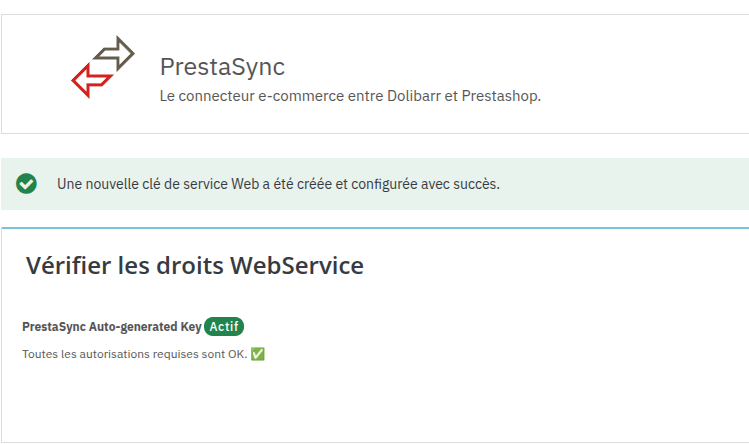
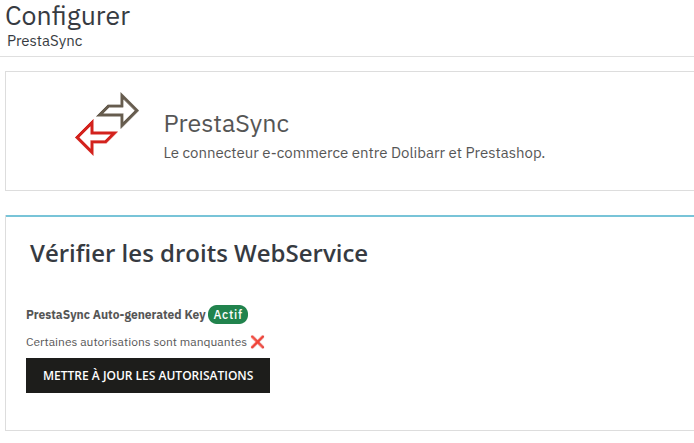
2. Créer une clé API Mode automatique
Dans le panneau de configuration du module coté prestashop
Cliquez sur Créer une nouvelle clé !
2. bis Créer une clé API Manuellement
Dans Paramètres avancés > Webservice, cliquez sur Ajouter une nouvelle clé Webservice.
Cliquez sur Générer ! pour créer une clé unique.
Ajoutez une description (par exemple, "Connexion Dolibarr").
Définissez l'option Statut sur "Oui".
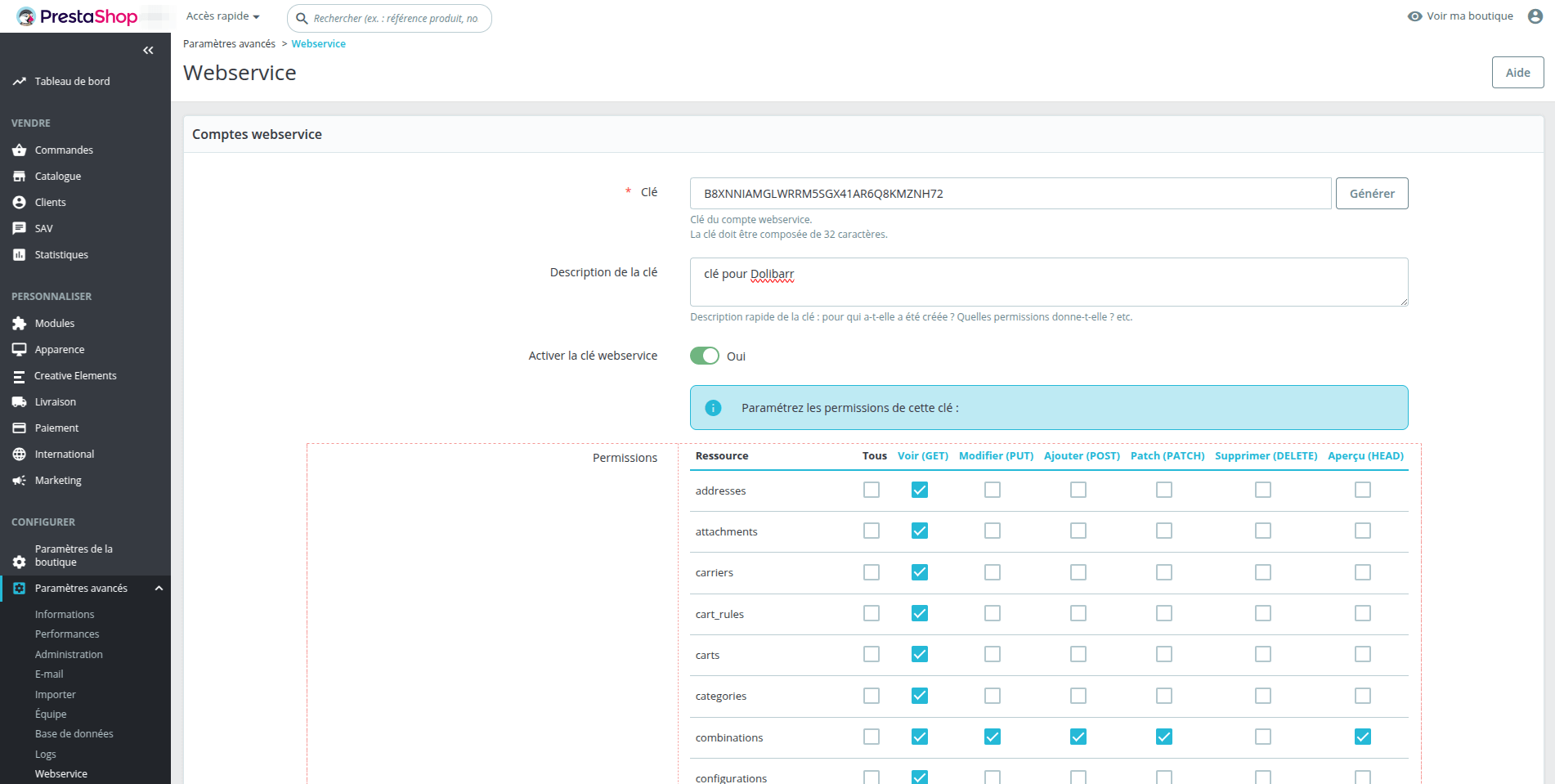
3. Configure Permissions
Cochez les cases GET et/ou PUT pour les ressources correspondantes.
Cliquez sur Enregistrer.
Assurez-vous que la clé dispose des autorisations suivantes :
GET & Head pour:
shops,languages,order_histories, attachments, addresses, carriers, combinations, countries, customers, orders, order_carriers, order_details, products, product_options, product_option_values, product_suppliers, suppliers, taxes, tax_rules, tax_rule_groups, customizations, product_customization_fields, order_payments
PUT pour:
combinations, order_histories, products
Configuration des mises à jour de masse des prix et des stocks
Le module peut utiliser deux méthodes différentes pour récupérer le fichier CSV contenant les informations sur le prix et le stock des produits. La première méthode (recommandée) consiste à utiliser l'option « Télécharger le fichier à partir de l'URL », qui ne nécessite que le lien URL vers le fichier disponible dans Dolibarr (le lien contient un jeton de sécurité). La seconde méthode est la méthode FTP, qui nécessite la configuration d'une connexion FTP vers le dossier documents de Dolibarr pour la récupération des fichiers.
Configuration de la méthode « Télécharger un fichier à partir d'une URL
Pour activer la mise à jour en masse des prix et stocks dans PrestaShop, suivez ces étapes :
- Activez la tâche planifiée pour l'exportation des prix et stocks dans Dolibarr (Exportation des prix et stocks des produits) (voir image Dolibarr point 1).
Cette tâche génère un fichier stocké dans le répertoire des documents de Dolibarr :
/prestasync/export-stock.csv - Copiez dans la page de configuration de Dolibarr le lien permettant de télécharger le fichier CSV des prix et stocks (voir image Dolibarr point 2).
- Retournez à la configuration de PrestaDoliSync dans PrestaShop et sélectionnez "Télécharger le fichier depuis l'URL" dans le champ mode d'importation du fichier des prix (voir image PrestaShop point 1).
- Collez votre lien dans le champ "URL du fichier d'importation des prix" (voir image PrestaShop point 2).
- Enregistrez

Configuration de la méthode FTP
Pour activer la mise à jour en masse des prix et stocks dans PrestaShop, suivez ces étapes :
- Activez la tâche planifiée pour l'exportation des prix et stocks dans Dolibarr (Exportation des prix et stocks des produits).
Cette tâche génère un fichier stocké dans le répertoire des documents de Dolibarr :
/prestasync/export-stock.csv - Configurez l'accès FTP au dossier des documents de votre installation Dolibarr.
- Retournez à PrestaShop et sélectionnez "Obtenir le fichier depuis FTP" dans le champ mode d'importation du fichier des prix (voir image PrestaShop point 1).
- Entrez les identifiants d'accès FTP dans la configuration du module sur PrestaShop (voir point 2 dans l'image).
Astuce : Bien que Dolibarr génère le fichier sous le nom export-stock.csv, vous pouvez utiliser un fichier différent. Cela vous permet de créer un fichier personnalisé avec vos propres modifications de stock ou de prix. - Activez la mise à jour en masse des prix. (Voir point 1 dans l'image).
- Ajoutez une tâche planifiée pour appeler l'URL fournie sous le bouton d'activation de la mise à jour en masse des prix. (Voir point 2 dans l'image).
- Enregistrez
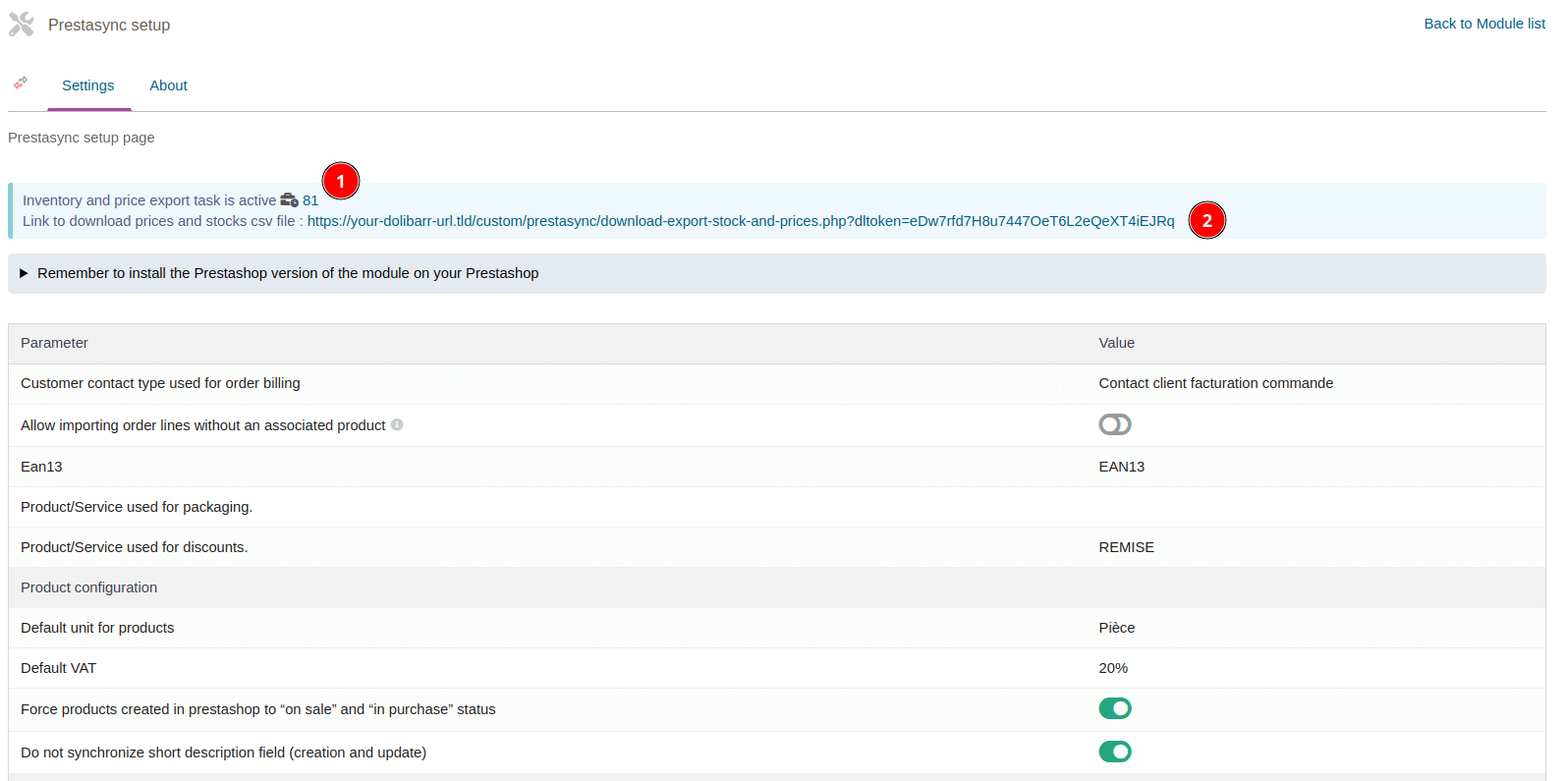

Note: your dolibarrimport price url need to be accessible by your prestashop apache server.
Effectuer des mises à jour massives des prix et des stocks
Une fois le module configuré, il suffit de lancer l'URL de mise à jour disponible sur la page de configuration du module PrestaDoliSync dans PrestaShop (voir point 3 dans l'image).
Pour automatiser les mises à jour régulières, il est recommandé d'utiliser une tâche planifiée (cron) afin d'effectuer des appels périodiques à cette URL. Il est conseillé de mettre à jour ces informations au moins une fois par jour, et il est déconseillé d'effectuer des mises à jour trop fréquentes, une fréquence d'une fois par heure étant déjà considérée comme élevée.
Note : Les erreurs sont enregistrées dans la section des journaux de Dolibarr.
Astuce : Vous pouvez appeler l'URL avec le paramètre &displaylog=1 pour afficher toutes les informations lors de l'appel de l'URL. De plus, vous pouvez filtrer les journaux pour une référence produit spécifique en utilisant &ref=YOURREFERENCE.
Configuration de l'importation automatique des commandes dans Dolibarr avec les WebHooks
Les webhooks de PrestaShop permettent d'envoyer des mises à jour de statut à Dolibarr, ce qui lui permet de récupérer automatiquement les commandes en fonction des changements de statut, à condition que la configuration le permette. Cette intégration rationalise le processus en déclenchant une synchronisation automatique des données chaque fois qu'un statut de commande est mis à jour, réduisant ainsi le besoin d'intervention manuelle et améliorant l'efficacité.
Configuration du WebHook
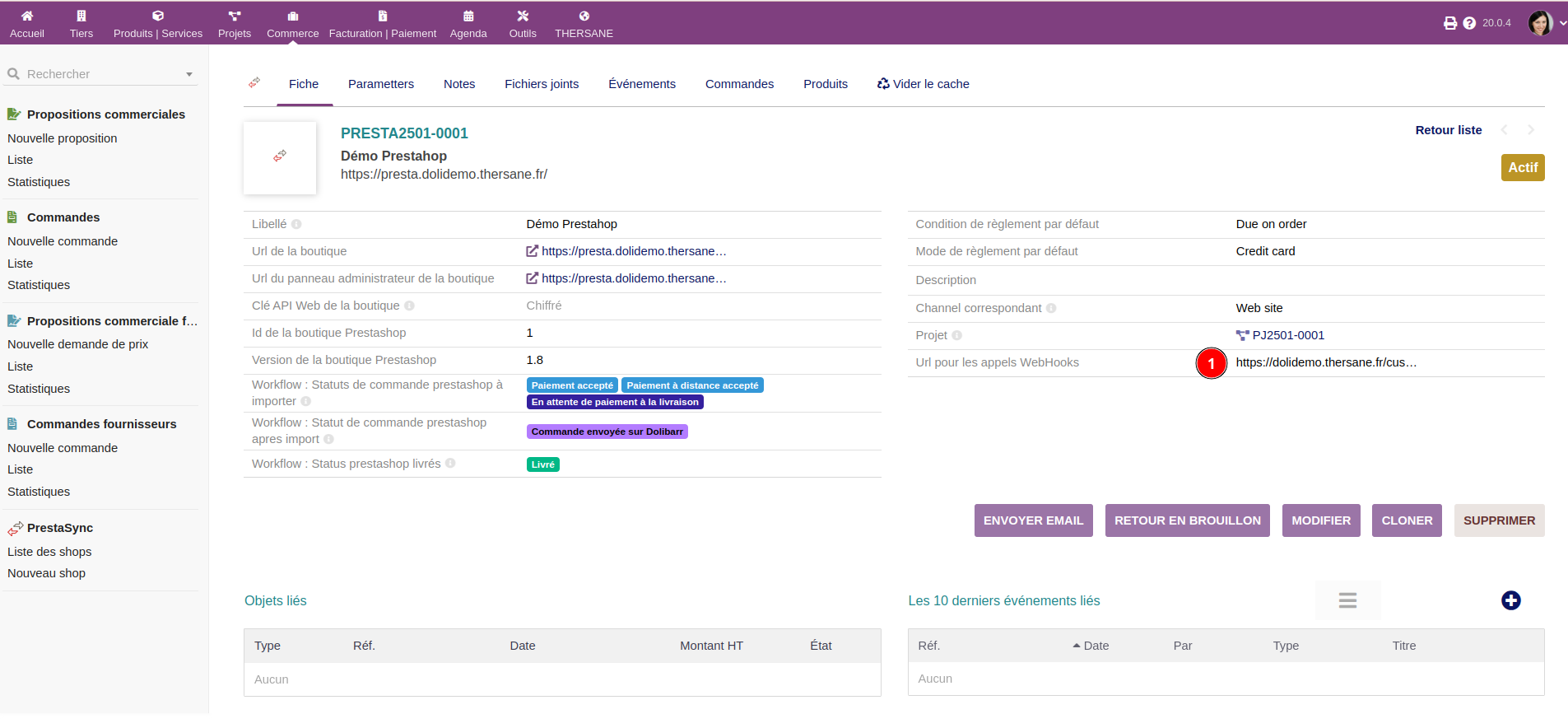
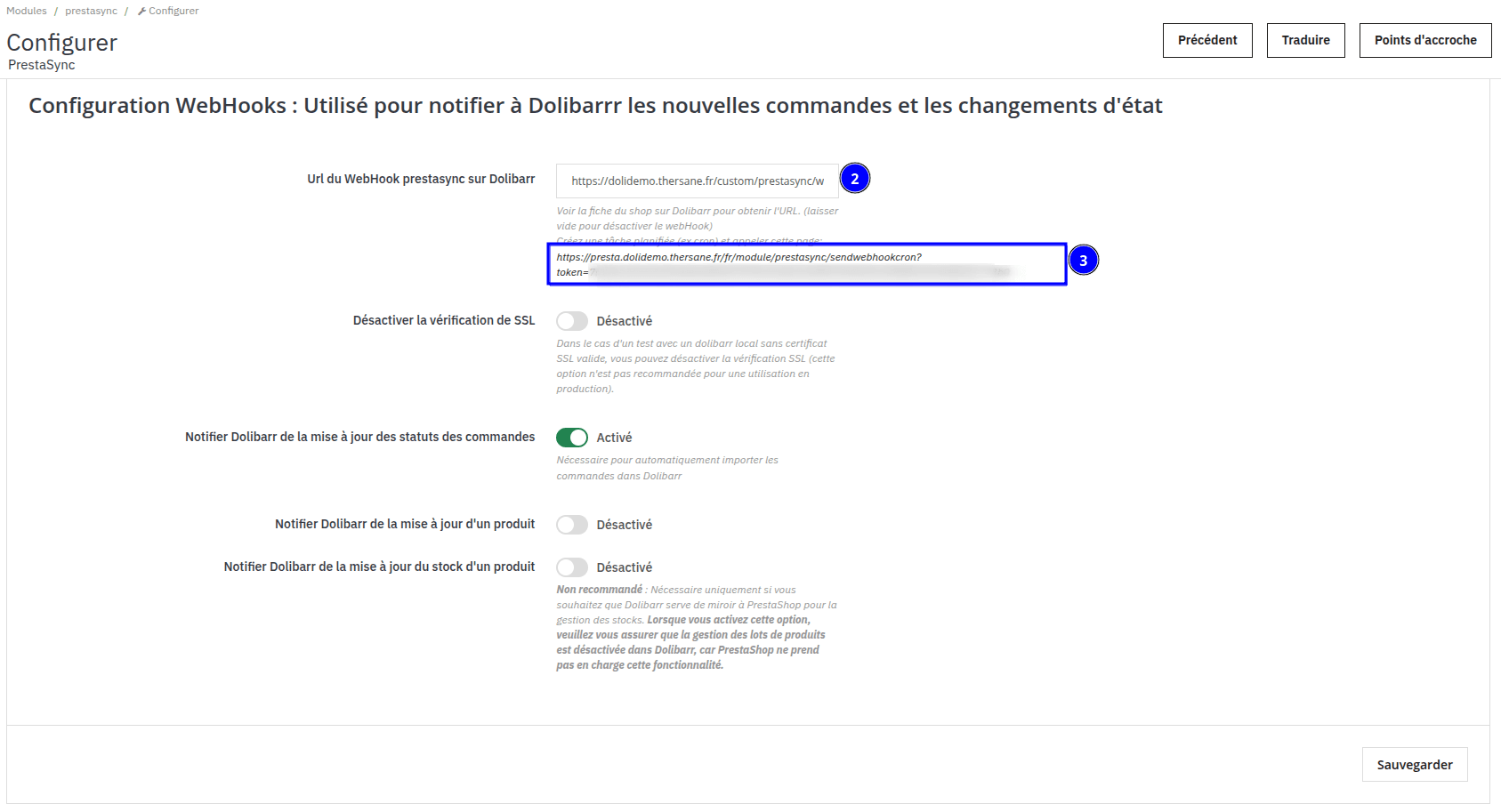
1. Pour configurer le webhook saisir simplement l'url fournie par le module PrestaDoliSync coté de Dolibarr. (Voir points 1 et 2 sur l'image)
2. Ajouter une tâche planifiée (cron) qui appel l'URL (Point 3) toutes les minutes (ou au minimum toutes les 5 mins).
À noter : les webhooks permettent de stocker et d’envoyer des événements entre Prestashop et Dolibarr. Ces événements sont conservés pour envoi pendant 10 minutes ; passé ce délai, ils sont ignorés ou supprimés. Il est donc important de déclencher l’appel à l’URL durant ce laps de temps, d’où l’intérêt de la tâche planifiée (cron).
Page de configurations
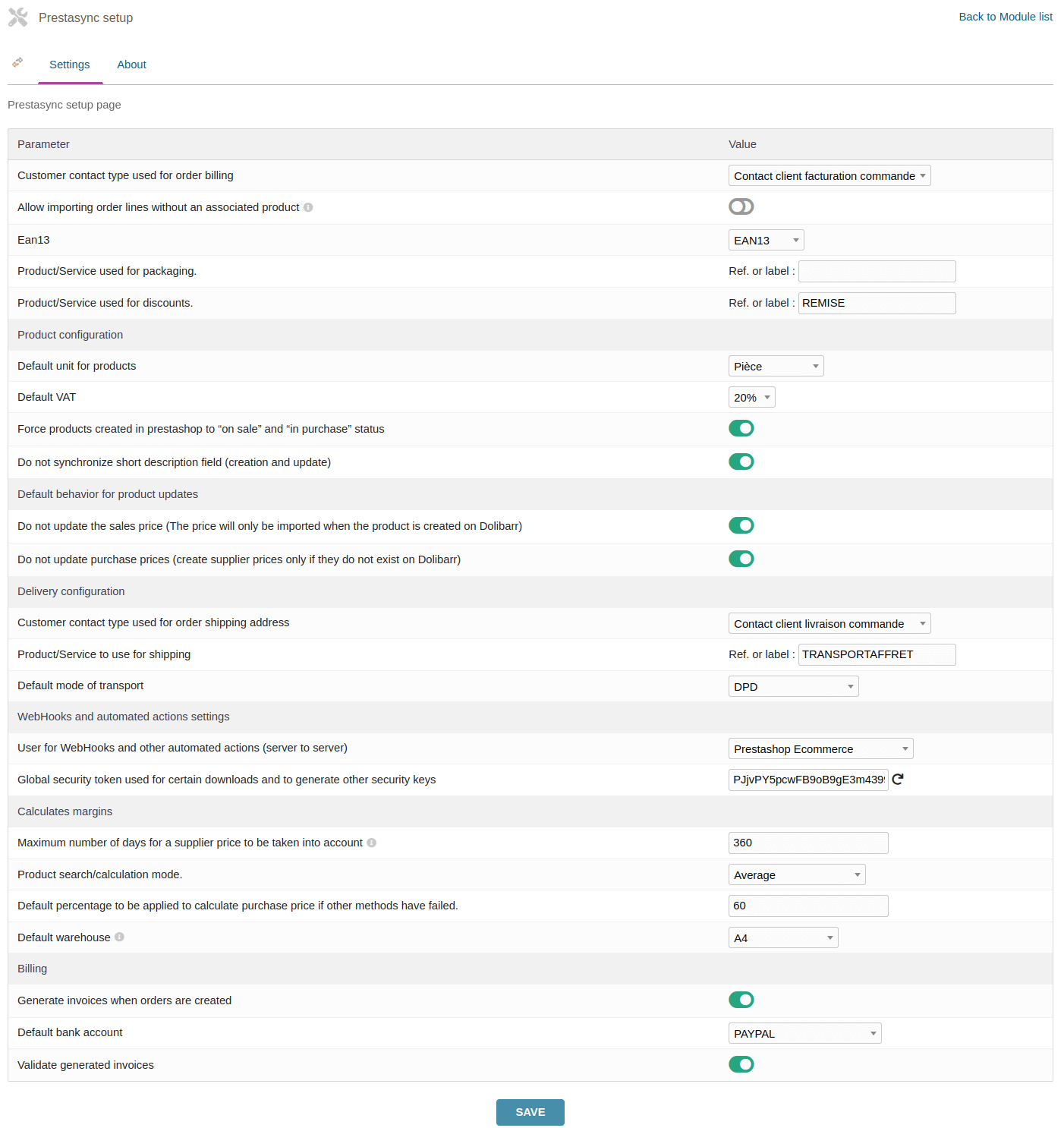
Configurer les paramètres dans la page de configuration de Dolibarr
La dernière étape d'une installation réussie du module dans Dolibarr consiste à configurer les paramètres de base dans la page de configuration. Ces paramètres vous permettent d'adapter le système aux besoins de votre entreprise. Dans cette section, vous définirez des paramètres tels que le type de contact client pour la facturation et l'expédition, les produits/services utilisés pour gérer les remises et l'emballage, et les paramètres de synchronisation avec PrestaShop.
Il est important de compléter cette étape avec soin, car ces paramètres affecteront directement la façon dont les commandes, les factures et les livraisons seront gérées dans Dolibarr. Ces paramètres doivent être configurés en fonction des workflow de votre entreprise et de la façon dont vous travaillez au quotidien. Une fois les configurations de base définies, vous pouvez poursuivre la personnalisation du système et l'intégration avec d'autres outils si nécessaire.
N'oubliez pas que cette page de configuration vous permet également de définir des options importantes pour la gestion des stocks, des prix d'achat et de vente, ainsi que pour la sécurité et l'automatisation des actions dans le système.
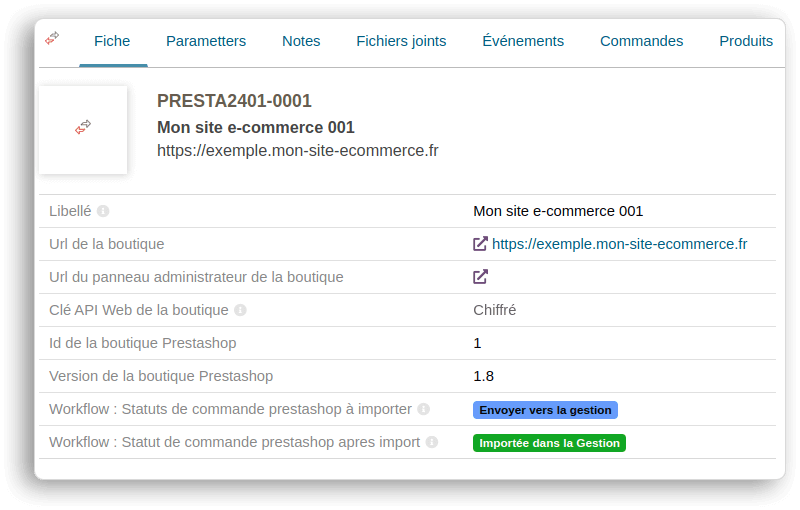
Créez votre première boutique Prestashop dans Dolibarr
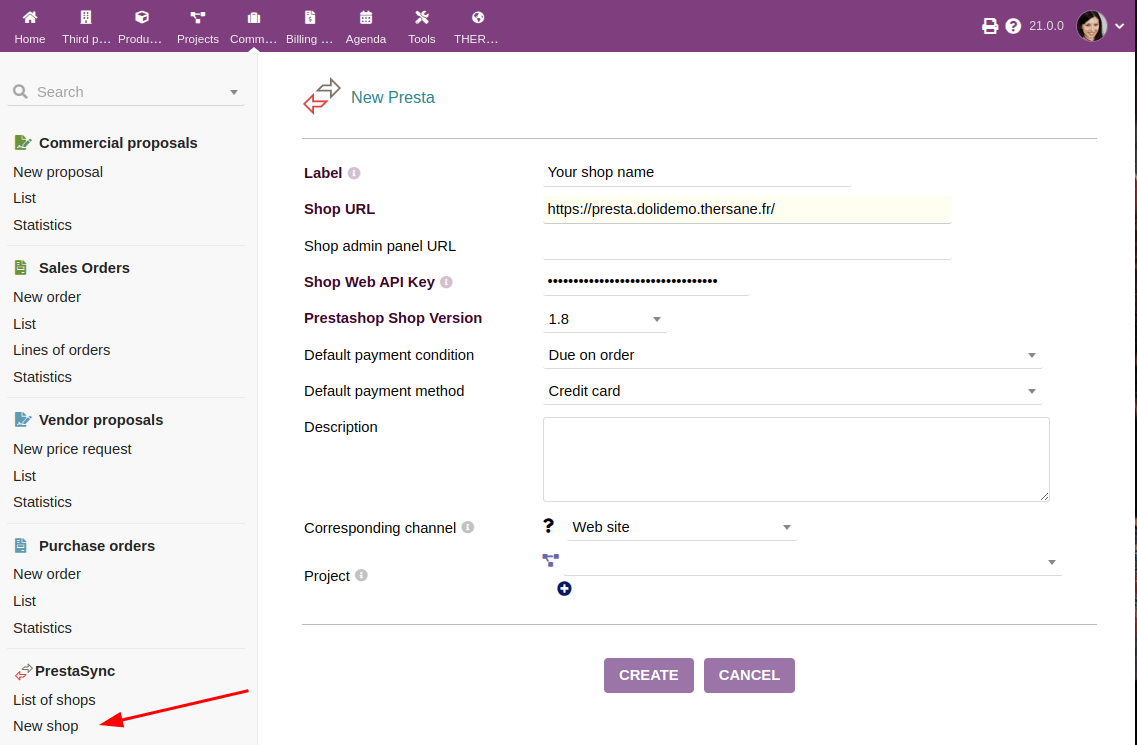
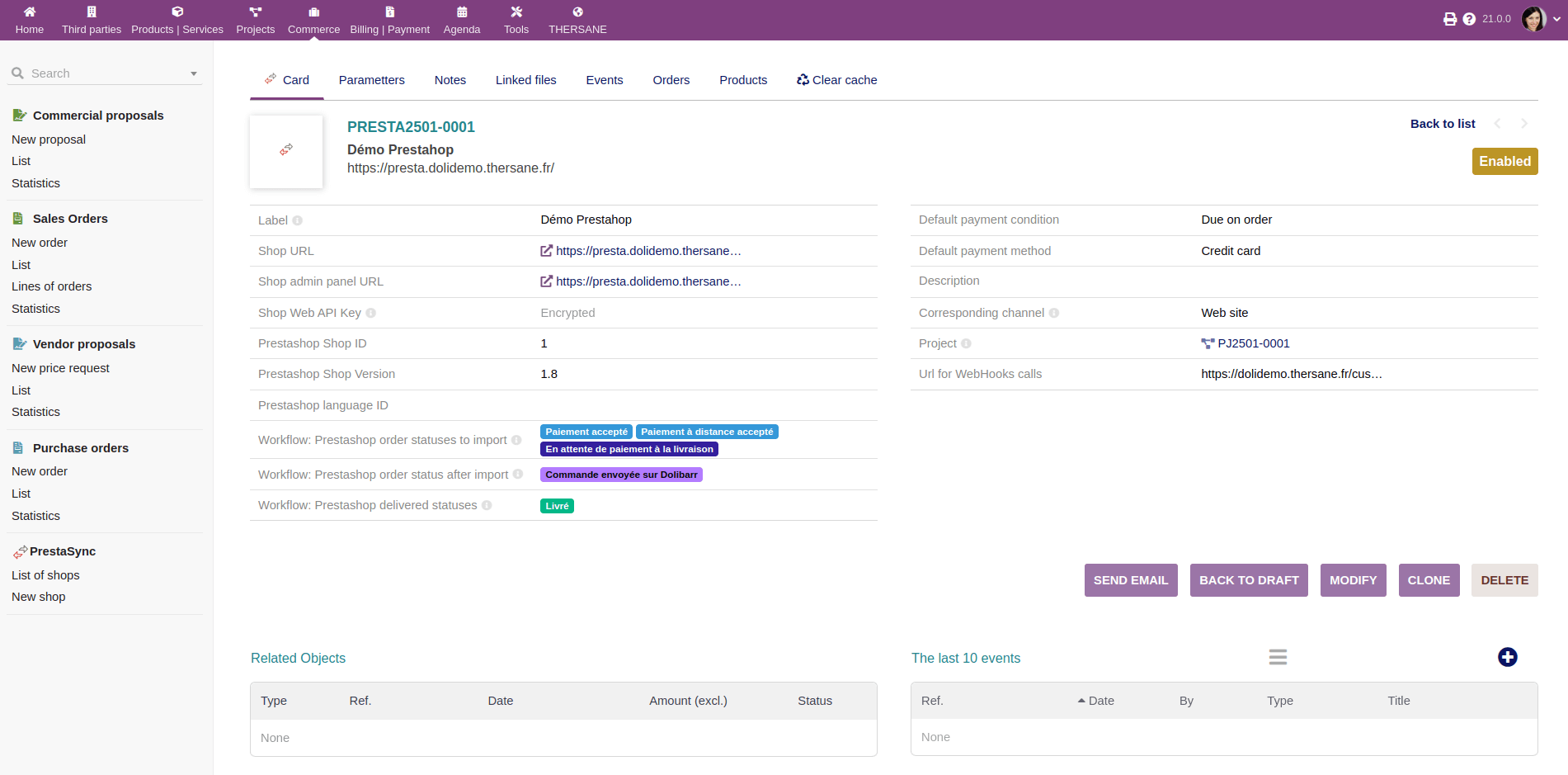
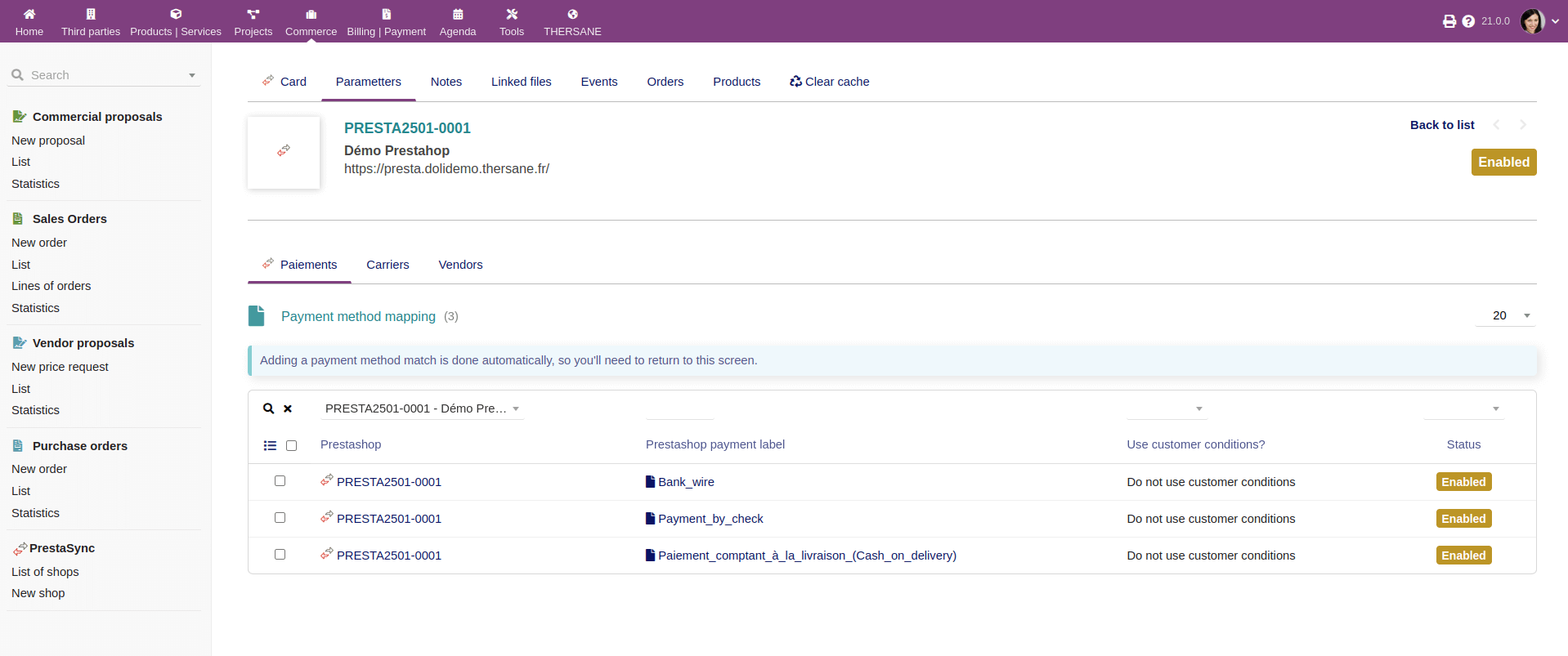


Comment importer des commandes prestashop dans Dolibarr ?
Importer une commande avec PrestaDoliSync
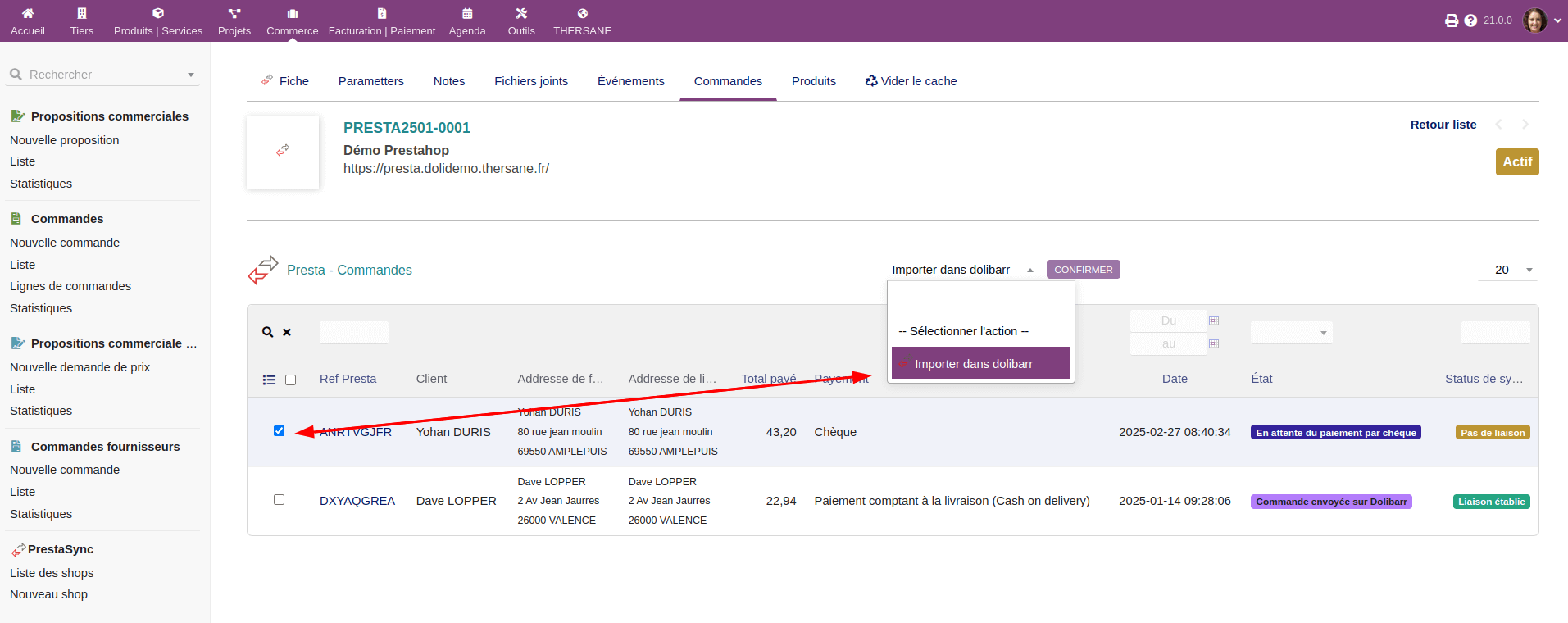
Si vous n'avez pas configuré la synchronisation automatique des commandes via Webhooks, vous pouvez importer manuellement les commandes de PrestaShop vers Dolibarr de deux manières :
1. Importation en masse
- Accédez à la liste des commandes dans le module PrestaDoliSync.
- Sélectionnez les commandes que vous souhaitez importer.
- Cliquez sur l'option pour importer les commandes sélectionnées.
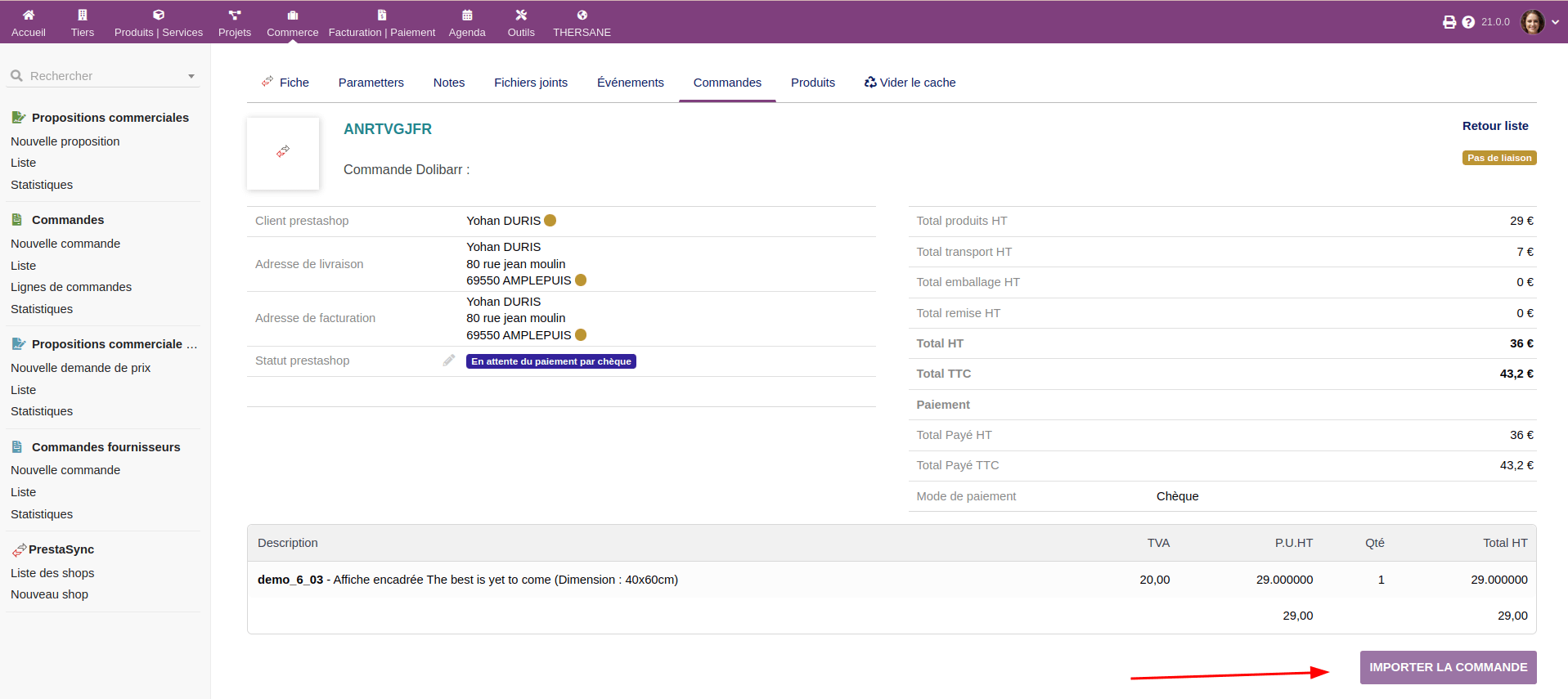
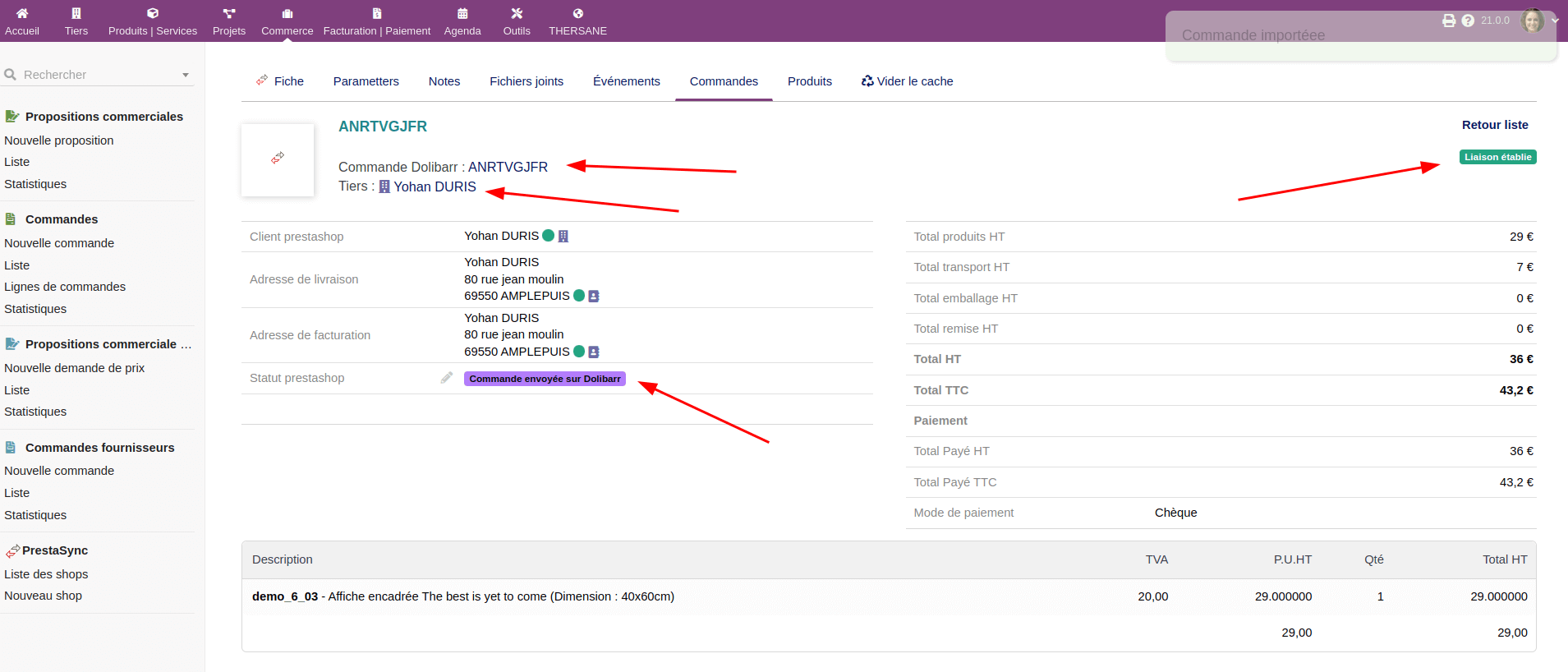
2. Importation individuelle
- Ouvrez la fiche d'une commande spécifique.
- Utilisez l'option d'importation pour récupérer les informations depuis PrestaShop.
L'importation manuelle vous permet de contrôler quelles commandes sont intégrées dans Dolibarr, en particulier si vous souhaitez filtrer ou vérifier certaines commandes avant la synchronisation.
Configuration des factures avec PrestaDoliSync
Si vous souhaitez que toutes les factures soient générées par Dolibarr (et non par PrestaShop), il faut déléguer la gestion des factures à Dolibarr.
Cela permet d’avoir des factures identiques et centralisées entre vos deux systèmes.
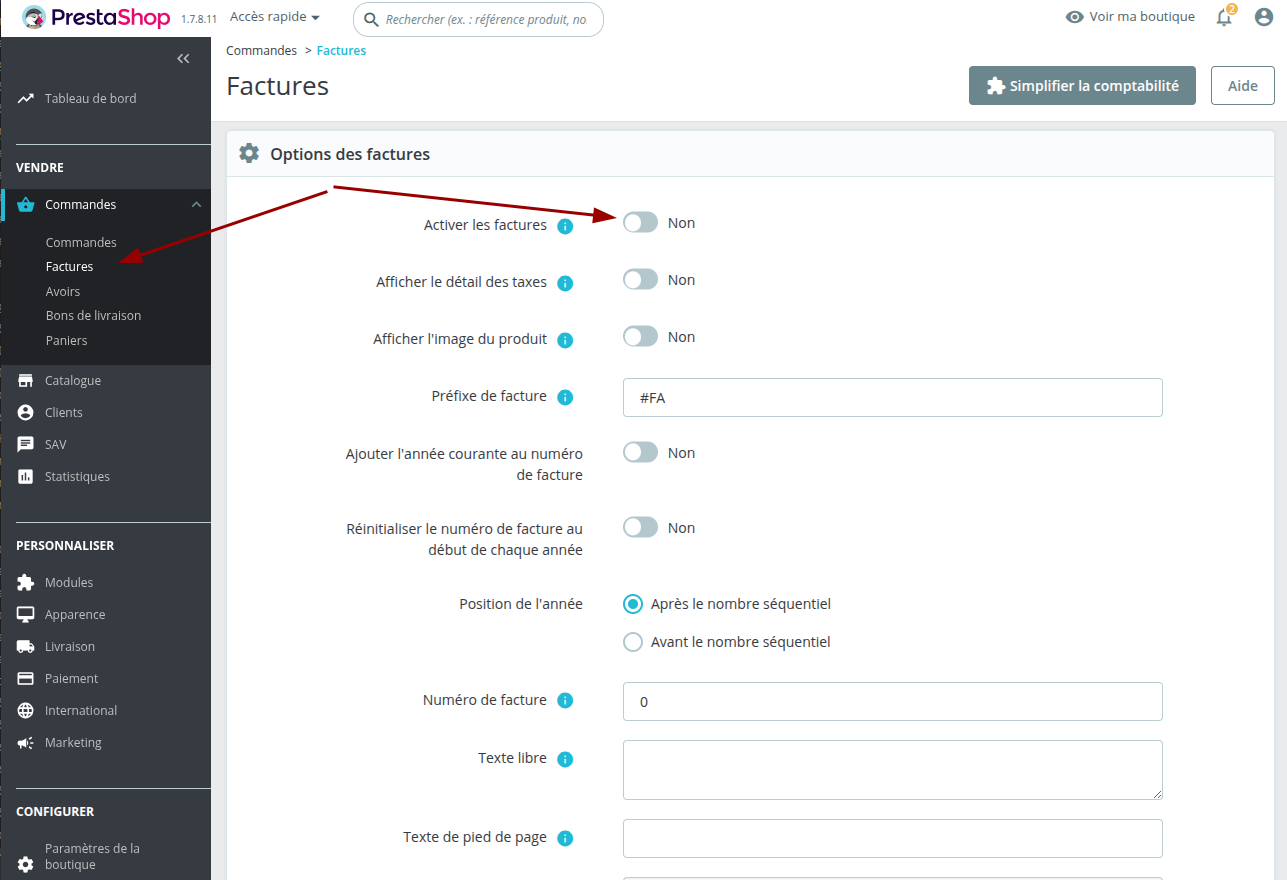
Étape 1 : Désactiver la génération des factures dans PrestaShop
- Désactiver les factures dans les paramètres généraux
- Allez dans Commandes > Factures.
- Dans la section Options des factures, mettez Activer les factures → NON.
- Désactiver la génération automatique par statut
- Allez dans Paramètres de commandes > États de commandes.
- Assurez-vous que l’option Générer une facture est désactivée pour tous les statuts de commande.
De cette façon, PrestaShop n’émettra plus de factures, et celles de Dolibarr seront les seules valides.
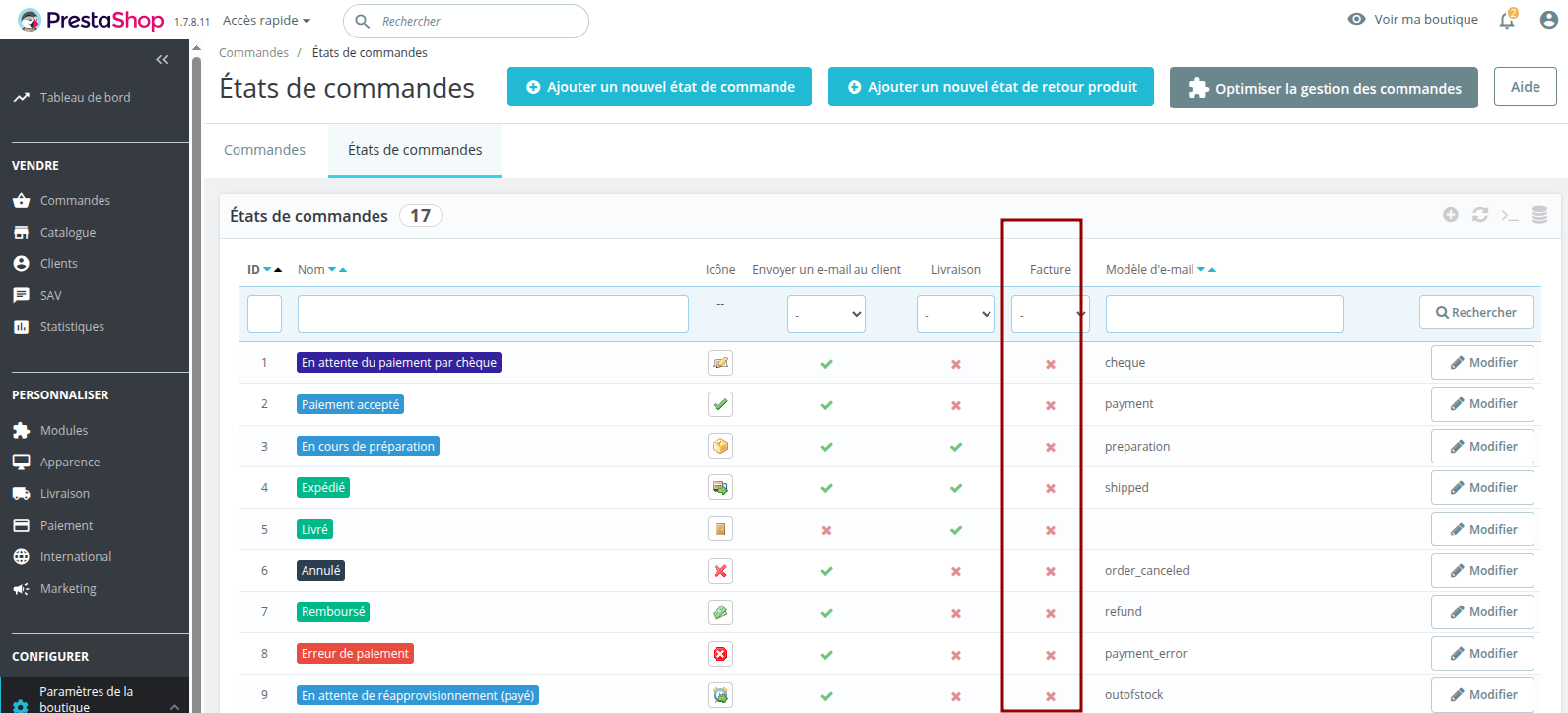
Étape 2 : Récupérer la clé API Dolibarr
- Connectez-vous à Dolibarr en administrateur.
- Allez dans Accueil > Configuration > Modules/Applications > Web services.
- Activez le module API REST (si ce n’est pas déjà fait).
- Pour créer un utilisateur dédié : allez dans Utilisateurs & Groupes > Utilisateurs, créez un nouvel utilisateur, attribuez-lui les droits minimaux requis pour accéder aux factures (accès aux factures / tiers...) et enregistrez.
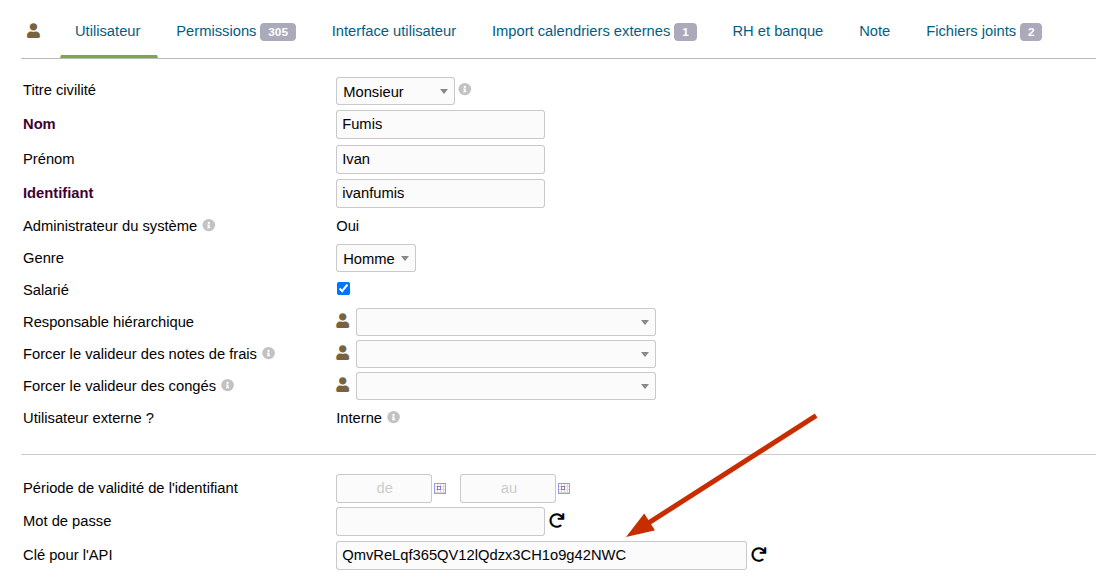
- Pour récupérer la clé API d’un utilisateur (nouveau ou existant) : ouvrez la fiche utilisateur et copiez la clé API associée à ce compte.
- Dans le module PrestaDoliSync (côté PrestaShop), ouvrez la section : Configuration de l’API Dolibarr : utilisé pour afficher les factures Dolibarr sur le compte client.
- Renseignez les informations suivantes :
- URL Dolibarr (exemple :
https://votresite.com/dolibarr/) - Clé API Dolibarr
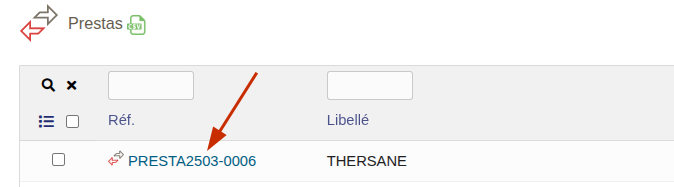
- Référence du shop dans Dolibarr (référence de votre boutique dans Dolibarr)
- URL Dolibarr (exemple :
Incompatibilités connues
Le module Dolibarr Presta Sync s'appuie sur les WebServices natifs de PrestaShop pour assurer la synchronisation des données entre votre boutique en ligne et Dolibarr. Cependant, certaines versions de PrestaShop présentent des bugs ou des limitations dans leur implémentation des WebServices, susceptibles de perturber le bon fonctionnement du module.
Ces incompatibilités peuvent entraîner des erreurs lors de l'import ou de l'export de données (produits, clients, commandes, etc.), ou bloquer complètement la synchronisation. Il est donc essentiel de s'assurer que votre instance PrestaShop est à jour et que les correctifs nécessaires sont appliqués.
À noter : THERSANE contribue activement au projet PrestaShop en identifiant les anomalies liées aux WebServices utilisés par le module PrestDoliSync et en proposant des correctifs directement dans le code source via la plateforme collaborative GitHub. Ces contributions visent à améliorer la stabilité et la compatibilité du cœur de PrestaShop avec les solutions de gestion comme Dolibarr.
Vous trouverez ci-dessous une liste de correctifs recommandés à appliquer manuellement sur certaines versions de PrestaShop afin de garantir une compatibilité optimale avec le module.
WebService : Correctifs pour images de type "customizations"
Voir correction #38417 sur le repos GitHub de Prestashop
La foire aux question (F.A.Q)
Lors de la mise à jour des stocks, certains produits restent à zéro dans le fichier CSV d'export, alors qu'il y a du stock dans Dolibarr.
Vérifiez que les produits en question ne sont pas désactivés à la vente côté Dolibarr.
En effet, lorsqu'on utilise la gestion des stocks sur PrestaShop, le moyen le plus simple de désactiver un produit à la vente est de définir son stock à zéro. Cela est d'autant plus vrai pour les déclinaisons, qui ne peuvent pas être désactivées individuellement dans PrestaShop
J'ai une erreur : Prestashop webService error : XBF: This call to PrestaShop Web Services failed and returned an HTTP status of 401. That means: Unauthorized
Cette erreur indique que la clé API utilisée pour accéder au Webservice de PrestaShop ne dispose pas des droits nécessaires pour effectuer certaines opérations (comme la lecture ou l’écriture sur certaines ressources : Clients, Paniers, Commandes, Produits, etc.).
1. Accédez au back-office PrestaShop :
- Allez dans Paramètres avancés > Webservice.
2. Vérifiez les permissions de la clé API utilisée :
- Recherchez la clé concernée.
- Cliquez sur modifier (icône crayon).
- Assurez-vous que les autorisations nécessaires sont activées pour les ressources concernées
Astuce : durant la phase de test, vous pouvez attribuer temporairement tous les droits à la clé API afin de confirmer qu’il s’agit bien d’un problème de permissions. Pensez ensuite à restreindre les accès selon les besoins réels, pour des raisons de sécurité."
3. Sauvegardez les modifications.
4. Videz le cache de PrestaSync et de PrestaShop si nécessaire.